Blog Archives
Install Reloj-Conky in Ubuntu/Linux Mint/Fedora/Other Distro
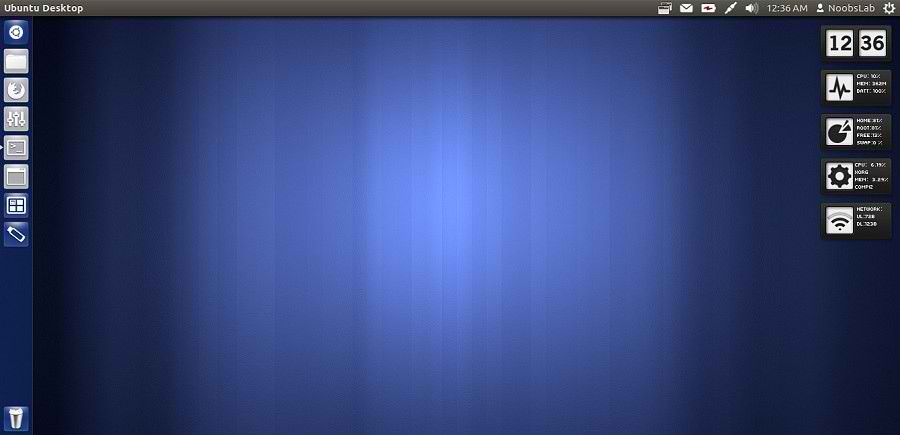
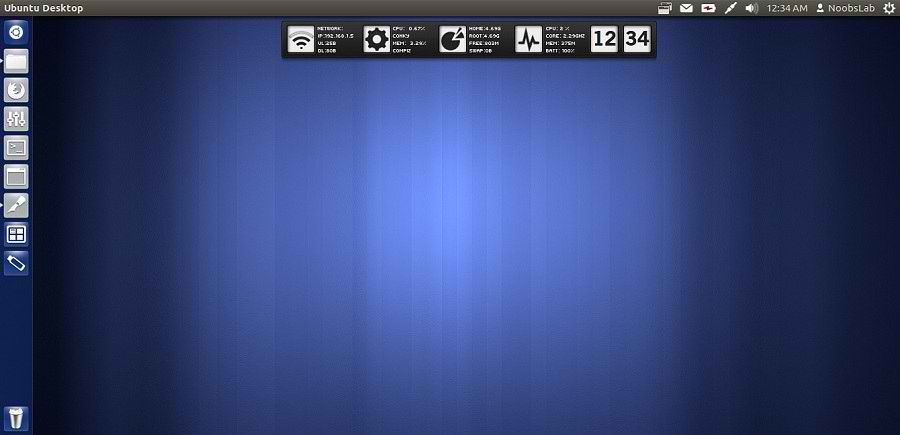
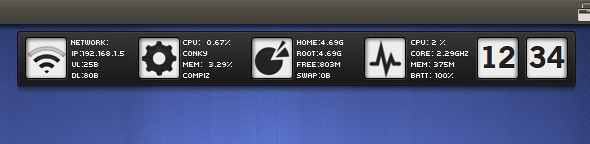
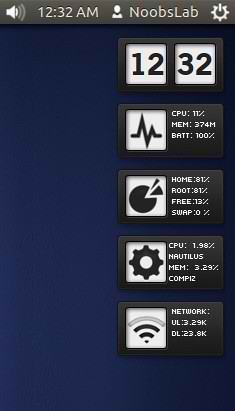
Previously NoobsLab shared other conky widgets for linux desktop to make desktop nice. So today brings Reloj conky for you, Basicall this conky is available in three versions but NoobsLab provide only two versions after modification. This conky is available in vertical bar and in horizontal bar. NoobsLab make this conky available for all linux environments like (Gnome Shell, Unity, Cinnamon, Gnome Classic, Mate, and others), also made this available for wifi and ethernet. Reloj conky shows Cpu usage, Memory usage, Root and Home usage, Network upload and download speed, and Current pc Time.
Install Conky in Ubuntu/Linux Mint open terminal (Press Ctrl+Alt+T) and copy the following commands in the Terminal:
- sudo apt-get install conky conky-all
Install by yourself in other distro’s.
First of all Download Startup script with following commands:
- wget -O .start-conky http://dl.dropbox.com/u/53319850/NoobsLab.com/.start-conky
- chmod +x .start-conky
Now open Startup Applications > click Add > New Dialog box will open click on Browse > Now (Press Ctrl+H) see following screenshot.

1: Conky-Reloj Horizontal Bar
for (Unity, Gnome Classic, Mate, and other):
To install Conky-Reloj in Ubuntu/Mint open Terminal (Press Ctrl+Alt+T) and copy the following commands in the Terminal:
- wget -O reloj-bar-wlan-u.zip http://dl.dropbox.com/u/53319850/NoobsLab.com/conky/conky-reloj-bar-wlan-u.zip
- unzip reloj-bar-wlan-u.zip
- sudo rm reloj-bar-wlan-u.zip
for (Gnome Shell and Cinnamon):
To install Conky-Reloj in Ubuntu/Mint open Terminal (Press Ctrl+Alt+T) and copy the following commands in the Terminal:
- wget -O reloj-bar-wlan-gs.zip http://dl.dropbox.com/u/53319850/NoobsLab.com/conky/conky-reloj-bar-wlan-gs.zip
- unzip reloj-bar-wlan-gs.zip
- sudo rm reloj-bar-wlan-gs.zip
for (Unity, Gnome Classic, Mate, and other):
To install Conky-Reloj in Ubuntu/Mint open Terminal (Press Ctrl+Alt+T) and copy the following commands in the Terminal:
- wget -O reloj-bar-eth-u.zip http://dl.dropbox.com/u/53319850/NoobsLab.com/conky/conky-reloj-bar-eth-u.zip
- unzip reloj-bar-eth-u.zip
- sudo rm reloj-bar-eth-u.zip
for (Gnome Shell and Cinnamon):
To install Conky-Reloj in Ubuntu/Mint open Terminal (Press Ctrl+Alt+T) and copy the following commands in the Terminal:
- wget -O reloj-bar-eth-gs.zip http://dl.dropbox.com/u/53319850/NoobsLab.com/conky/conky-reloj-bar-eth-gs.zip
- unzip reloj-bar-eth-gs.zip
- sudo rm reloj-bar-eth-gs.zip
2: Conky-Reloj Vertical Bar
for (Unity, Gnome Classic, Mate, and other):
To install Conky-Reloj in Ubuntu/Mint open Terminal (Press Ctrl+Alt+T) and copy the following commands in the Terminal:
- wget -O reloj-ver-wlan-u.zip http://dl.dropbox.com/u/53319850/NoobsLab.com/conky/conky-reloj-ver-wlan-u.zip
- unzip reloj-ver-wlan-u.zip
- sudo rm reloj-ver-wlan-u.zip
for (Gnome Shell and Cinnamon):
To install Conky-Reloj in Ubuntu/Mint open Terminal (Press Ctrl+Alt+T) and copy the following commands in the Terminal:
- wget -O reloj-ver-wlan-gs.zip http://dl.dropbox.com/u/53319850/NoobsLab.com/conky/conky-reloj-ver-wlan-gs.zip
- unzip reloj-ver-wlan-gs.zip
- sudo rm reloj-ver-wlan-gs.zip
for (Unity, Gnome Classic, Mate, and other):
To install Conky-Reloj in Ubuntu/Mint open Terminal (Press Ctrl+Alt+T) and copy the following commands in the Terminal:
- wget -O reloj-ver-eth-u.zip http://dl.dropbox.com/u/53319850/NoobsLab.com/conky/conky-reloj-ver-eth-u.zip
- unzip reloj-ver-eth-u.zip
- sudo rm reloj-ver-eth-u.zip
for (Gnome Shell and Cinnamon):
To install Conky-Reloj in Ubuntu/Mint open Terminal (Press Ctrl+Alt+T) and copy the following commands in the Terminal:
- wget -O reloj-ver-eth-gs.zip http://dl.dropbox.com/u/53319850/NoobsLab.com/conky/conky-reloj-ver-eth-gs.zip
- unzip reloj-ver-eth-gs.zip
- sudo rm reloj-ver-eth-gs.zip
That’s it, Enjoy
Source
Ubuntu Web Apps available via PPA (list of supported websites included)
The developers have just announced a new major project for Ubuntu, based on the near-future landing of, by default, a solid amount of web apps, featuring an enhanced desktop integration (Messaging Menu, Unity launcher, badge and HUD support, etc), basically, allowing users to easily launch a desired web app via the Dash, furthermore gaining, via the mentioned integration, enhanced Unity quicklists, number of messages, replies, etc, in the Messaging Menu and more (at the moment, Ubuntu Web Apps are work-in-progress).
The developers have made available a development PPA, containing Web Apps-specific bits, useful for testing and previews.
The mentioned PPA contains not only merely a singular web apps package, but a solid mount of changed applications, including Chromium, Firefox, lenses, System Settings, meaning, the new Web Apps are to probably push specific bits into major Ubuntu areas, probably needed for their usage.
The System Settings (after the packages are installed) gains a new addition, Online Accounts (visible by default), opening it, summons a list of ready-to-be-used services, such as Facebook, Flickr, Google (including Gmail, Google+, YouTube, Picasa), Twitter, Foursquare and Identi.ca, configuring accounts in the Online Accounts’ view, makes them automatically available on the presented online services.

How do we use Ubuntu Web Apps?
First, install the Web Apps, by adding the following development (probably unstable) PPA (Precise, Quantal)
sudo add-apt-repository ppa:webapps/preview
sudo apt-get update
sudo apt-get install unity-webapps-preview
then, restart the computer.
Running the above commands, modify Chromium and Firefox, consequently, navigating to supported webpages, automatically presents the user a top-left message Do you want to integrate ... with your Ubuntu desktop?, clicking Yes, creates an icon in relation to the visited page, icon that represents the web app with its desktop integration (later, the newly created web app is to launched via the Dash, just like a regular Ubuntu application).

The at-the-moment list of supported online places: 163, Angry Birds, Baidu, Baidu Mail, Baidu News, BBC, Blogger, CNN, Cut the rope, Drupal, Facebook, Gmail, Google Calendar, Google News, Google +, Google Reader, Grooveshark, Hotmail, Hulu, Last,fm, Launchpad, Linkedin, Lord of Ultima, Mail 163, Mail qq, Mail ru, MSN, News Mail ru, News Sohu, Reddit, Sina, Tiberium Alliances, Twitter, Vkontakte, WordPress, Yahoo Mail, Yahoo News, Yandex Mail, Yandex Music, Yandex News, Youtube.

Furthermore, the new Web Apps introduce a new lens, Unity Google Docs lens, gathering, displaying and managing one’s Google Docs documents, furthermore, the user is to easily navigate through the available documents by taking advantage of filters (Text Documents, PDF Files, Folders, etc).

The PPA (and its contained packages) are to be reverted to a default Ubuntu state, by typing in a terminal
sudo apt-get install ppa-purge
sudo ppa-purge ppa:webapps/preview
Remove your Old Kernel On Ubuntu
When you’re running Ubuntu and updating your system frequently, there is a high chance that older kernels that are no longer needed are still installed on your system. Over time, if these older kernels are not removed, precious hard disk space may be wasted and your system’s performance may suffer.
Open terminal and check your current kernel:
root@penreturns:~$ uname -r

Next, type the command below to view / list all installed kernels on your system.
root@penreturns:~$ dpkg –list | grep linux-image

Find all the kernels that lower than your current kernel. When you know which kernel to remove, continue below to remove it. Run the commands below to remove the kernel you selected.
root@penreturns:~$ sudo apt-get purge linux-image-x.x.x.x-generic

root@penreturns:~$ sudo update-grub2
Reboot your system.
Enjoy!
Reset forgotten password in linux
If you have forgotten your Linux password, Many people face this problem you are not alone. It is probably one of the most common tech support problems. Luckily if you are using Ubuntu/any Linux they made it incredibly easy to reset your password.
So First Step is Boot in to Recovery Mode:
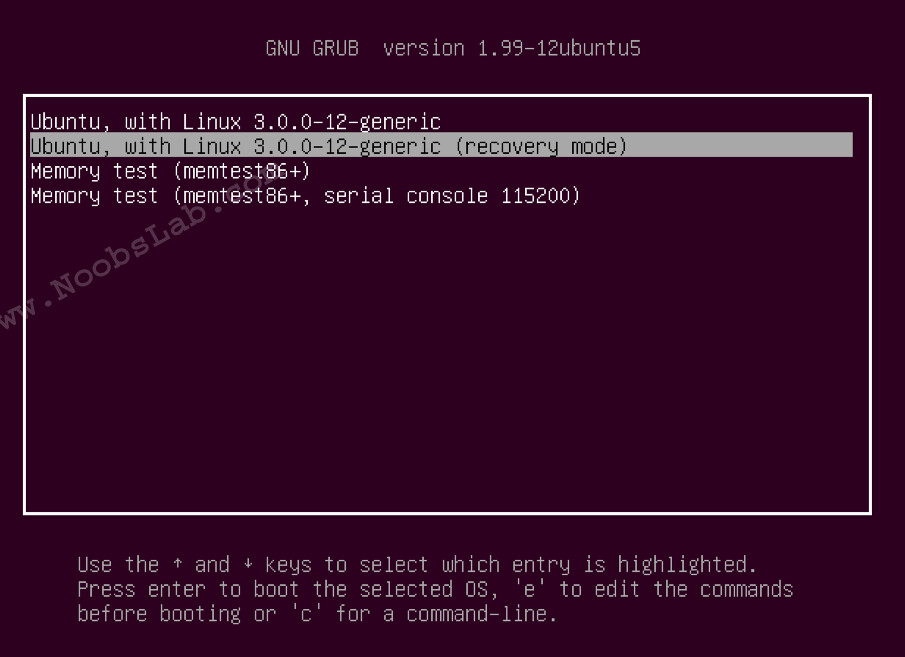
After some processing, You will see the following screen. Now select “root – Drop to root shell prompt” and press “Ok”
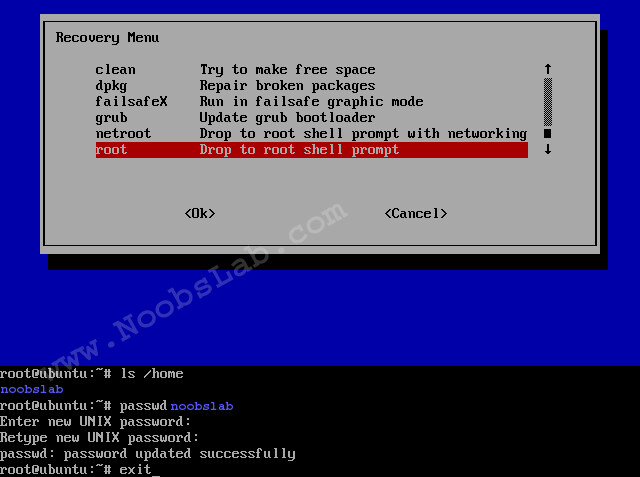
If you forgot your username enter this command to know:
- ls /home
In linux case is sensitive about username and password, If you have upper case than you need to enter same letters.
Now Enter following command to reset your password:
mount -rw -o remount /- passwd username
For example (See the picture above):
- passwd noobslab
Now enter your new password and confirm it.
Reboot pc with this command:
- exit
That’s it, Enjoy.
Problem with update manager in ubuntu
“Could not initialize the package information”
An unresolvable problem occurred while initializing the package information.
Please report this bug against the ‘update-manager’ package and include the following error message:
‘E:Encountered a section with no Package: header, problem with MergeList /var/lib/apt/lists/security.ubuntu.com_ubuntu_dists_precise-security_universe_i18n_Translation-en, E:The package lists or status file could not be parsed or opened.’
When you get a problem like this in ubuntu update manager simply run these commands
sudo rm /var/lib/apt/lists/* -vf
sudo apt-get update

Thats it....


 pacesettergraam